

Lens Adapter for Canon EOS M camera
In photography and videography, a lens adapter is a handy tool that lets you use cameras and lenses together even if they weren’t originally designed to work with each other.
The simplest type is called a passive lens adapter—its main job is to securely attach your lens to your camera body.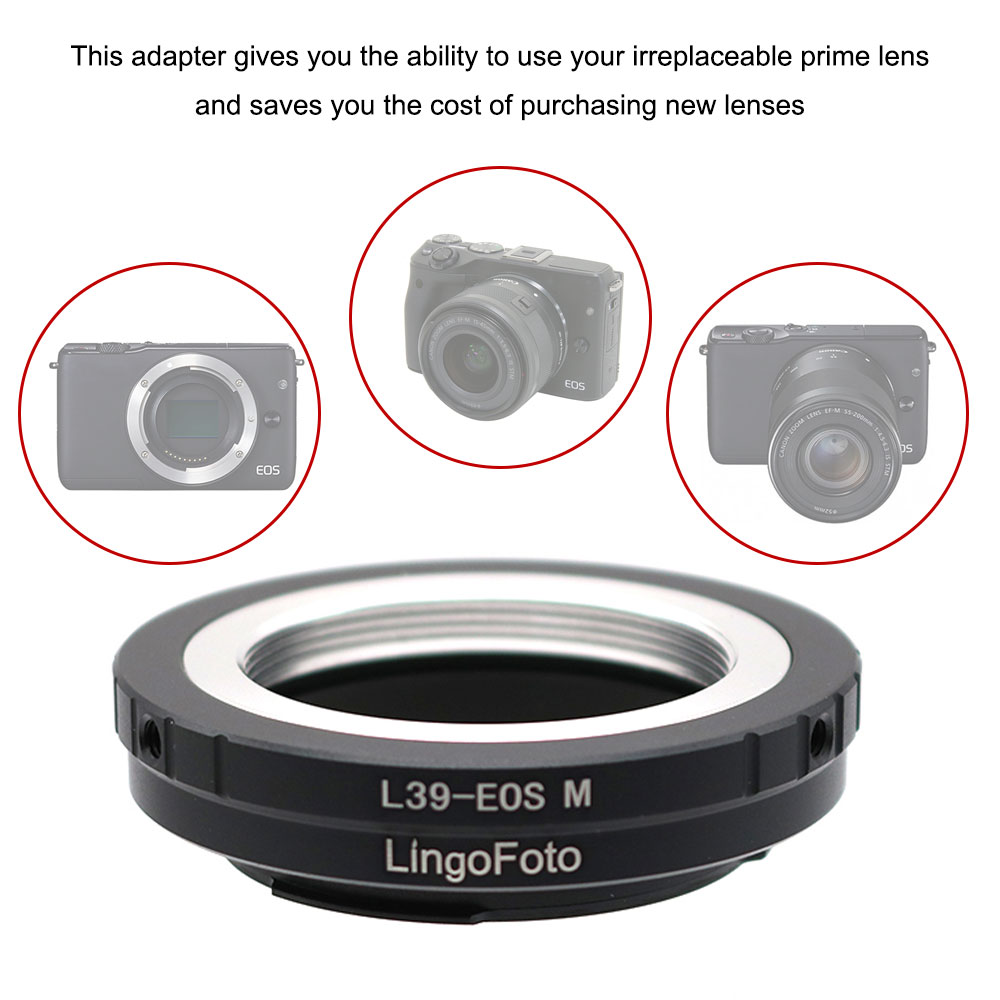
Our Canon EOS M series Adapter ring allows you to use a couple of lens on Canon EOS M mirrorless camera body such as Canon EOS M, M2, M3, M5, M6, M10, M100 etc.
Let's have a quick view of what models are available at LingoFoto
| P/N | Description | Compatible Lens | Compatible Camera | Picture |
| LC8252 | Mount Adapter Ring AI-EOS M | Nikon/Nikkor AI/F Mount Lens | Canon EF-M Mount | https://tf.jdy.com/fileserver/jdyattachmentimage/1667279785427746831/791124919374/1667279785427746831/pulic/imageList/56f5ppgRz1RSNYZm3d/LC8252_2b_thumbnails_scalePic.JPG |
| NP8426 | Mount Adapter Ring B4-EOS M | 2/3"B4 Camecorder Lens | Canon EF-M Mount | https://tf.jdy.com/fileserver/jdyattachmentimage/1667279785427746831/791124919374/1667279785427746831/202508/2a7e14/pulic/imageList/MY9NHNHyC5c01b0I37/NP8426_f_thumbnails_scalePic.jpg |
| LC8246 | Mount Adapter Ring CY-EOS M | Contax Yashica Lens | Canon EF-M Mount | https://tf.jdy.com/fileserver/jdyattachmentimage/1667279785427746831/791124919374/1667279785427746831/pulic/imageList/6UTumc2mIe0KIIxclk/LC8246_2b_thumbnails_scalePic.JPG |
| LC8245 | Mount Adapter Ring EOS-EOS M | Canon EOS EF EF-S Mount Lens | Canon EF-M Mount | https://tf.jdy.com/fileserver/jdyattachmentimage/1667279785427746831/791124919374/1667279785427746831/pulic/imageList/B4a80hc1Yvvqqt2PxN/LC8245_2a_thumbnails_scalePic.JPG |
| LC8243 | Mount Adapter Ring FD-EOS M | Canon FD FL Lens | Canon EF-M Mount | https://tf.jdy.com/fileserver/jdyattachmentimage/1667279785427746831/791124919374/1667279785427746831/pulic/imageList/oXhRd8VGdMggDPxtsi/LC8243_2b_thumbnails_scalePic.JPG |
| LC8242 | Mount Adapter Ring L39-EOS M | Leica LTM L39 M39 39mm Lens | Canon EF-M Mount | https://tf.jdy.com/fileserver/jdyattachmentimage/1667279785427746831/791124919374/1667279785427746831/pulic/imageList/wVChY2GkB4RSGmxf2a/LC8242_1b_thumbnails_scalePic.jpg |
| LC8248 | Mount Adapter Ring LM-EOS M | Leica M lenses | Canon EF-M Mount | https://tf.jdy.com/fileserver/jdyattachmentimage/1667279785427746831/791124919374/1667279785427746831/pulic/imageList/Ldw1my749jjBuy4OWG/LC8248_2a_thumbnails_scalePic.JPG |
| LC8247 | Mount Adapter Ring LR-EOS M | Leica R lenses | Canon EF-M Mount | https://tf.jdy.com/fileserver/jdyattachmentimage/1667279785427746831/791124919374/1667279785427746831/pulic/imageList/K86TeP3rTuGkX2SVtL/LC8247_2a_thumbnails_scalePic.JPG |
| LC8241 | Mount Adapter Ring M42-EOS M | M42 screw mount lens | Canon EF-M Mount | https://tf.jdy.com/fileserver/jdyattachmentimage/1667279785427746831/791124919374/1667279785427746831/pulic/imageList/TifJpV4K08igeFdn0r/LC8241_2d_thumbnails_scalePic.JPG |
| LC8244 | Mount Adapter Ring MD-EOS M | Minolta MD MC Lens | Canon EF-M Mount | https://tf.jdy.com/fileserver/jdyattachmentimage/1667279785427746831/791124919374/1667279785427746831/pulic/imageList/JTwbU0HhHGe2gg3Zym/LC8244_2b_thumbnails_scalePic.JPG |
| LC8249 | Mount Adapter Ring OM-EOS M | Olympus OM lens | Canon EF-M Mount | https://tf.jdy.com/fileserver/jdyattachmentimage/1667279785427746831/791124919374/1667279785427746831/pulic/imageList/zjbRBsFKyjhrHLjgry/LC8249_2a_thumbnails_scalePic.JPG |
| LC8253 | Mount Adapter Ring PK-EOS M | Pentax K Mount lenses | Canon EF-M Mount | https://tf.jdy.com/fileserver/jdyattachmentimage/1667279785427746831/791124919374/1667279785427746831/pulic/imageList/zowW8kYlKZZnDMrePQ/LC8253_2a_thumbnails_scalePic.JPG |
NO LENS ATTACHED--CANON EOS M MIRRORLESS CAMERAS:
Your camera may still require a manual setting to work with an adapted lens. If you don’t have your printed manual handy or can’t find one online, you can follow the guide below to make the adjustment.
EOS M, EOS M2:
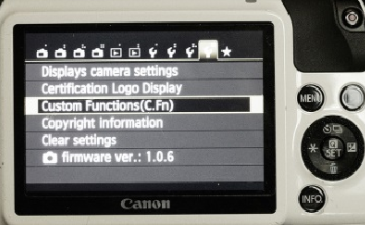
1) In the fourth Set-up menu, select “Custom Functions (C.Fn)”
2) In the Custom Function Setting IV (C.Fn IV: Operations/Others) category, navigate to “Release shutter w/o lens” and select it
3) Select “1: Enable”
EOS M50:
1) In the fifth Set-up menu, select “Custom Functions (C.Fn)”
2) Navigate to “Release shutter w/o lens” and select it
3) Select “1: Enable”
EOS M3, EOS M5, EOS M6, EOS M10:
1) In the Custom Functions menu, select “C.Fn III: Others”
2) Navigate to “Release shutter w/o lens” and select it
3) Select “1: Enable”
EOS M100:
1) In the Custom Functions menu, select “C.Fn II: Others”
2) Navigate to Release shutter w/o lens” and select it
3) Select: “1: Enable”